Home / Guide / A tour of the screen
Guide 2 of 11A tour of the screen
The app has the same tools on every device. On a computer you see everything side by side; on a phone you see one view at a time with the tools along the bottom.
On a computer
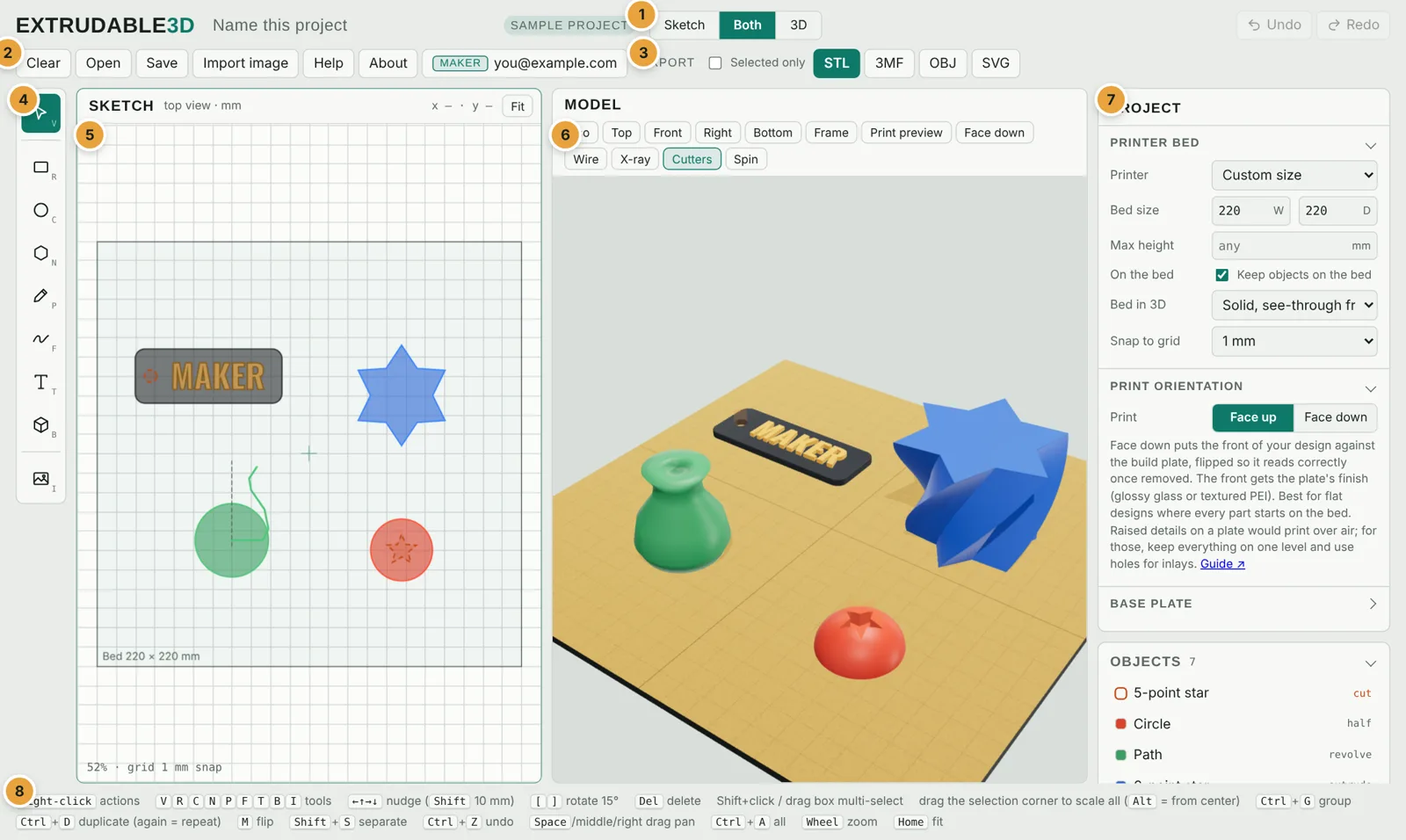
- View switch: Sketch, Both or 3D. Both is side by side; pick one view to give it the whole screen. Your choice is remembered.
- File buttons: Clear (empty the bed), Open and Save project files, Import image, About and your account.
- Export: download STL, 3MF, OBJ or SVG. See Saving and exporting.
- Tools: select, box, circle, polygon/star, pen, freehand, text, shape library and image import.
- Sketch: the top view of your printer bed, where you draw and arrange. The grid is in millimetres.
- 3D view: the solid model on the bed. Drag to turn it, scroll to zoom.
- Settings panel: settings for whatever is selected; with nothing selected it shows the project settings (printer, bed, print orientation, base plate), the list of objects and the print check.
- Hints: the keys and mouse actions for what you are doing right now. Right-click anything for a menu of actions.
Click the EXTRUDABLE3D logo to get back to this website; your design stays saved.
On a phone or tablet
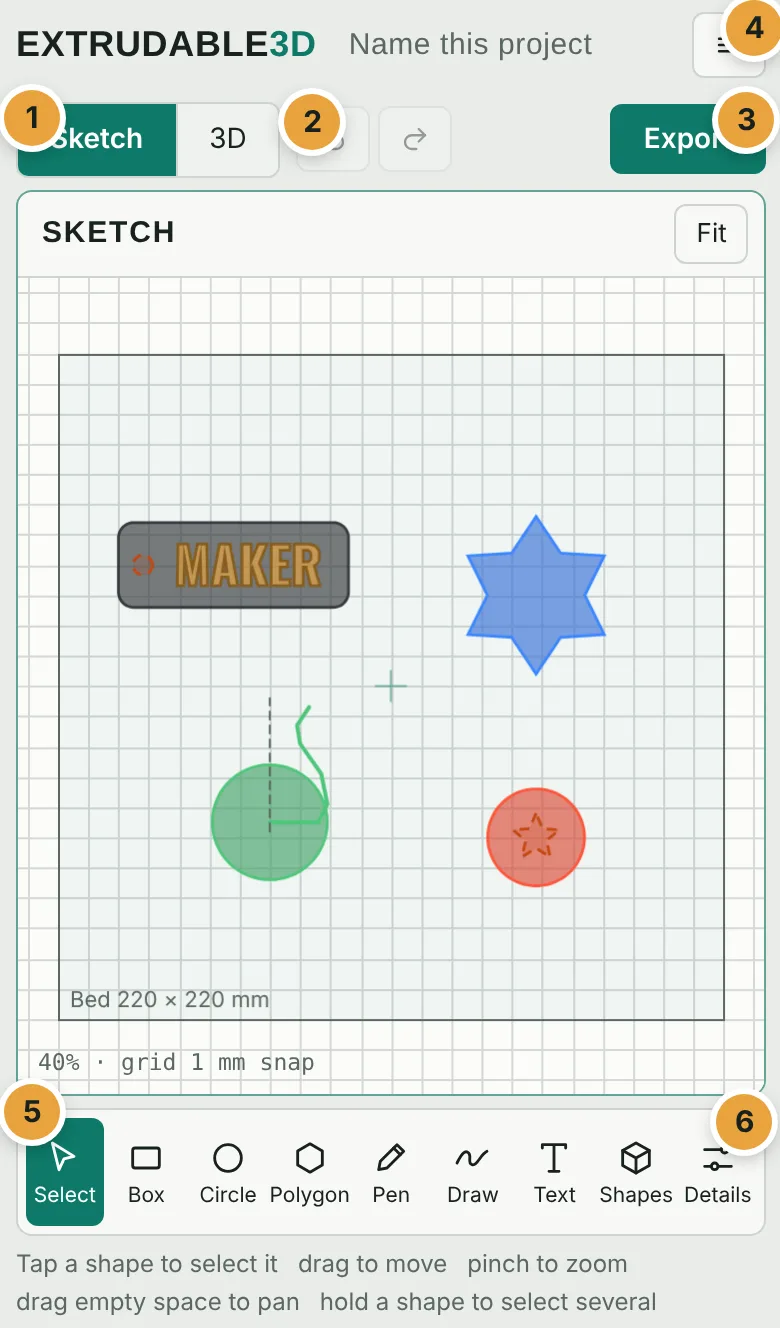
- Sketch | 3D: switch between drawing and the 3D model.
- Undo and Redo, always one tap away.
- Export: STL, 3MF, OBJ and SVG.
- Menu: Clear, Open, Save, Import image, About, Help, the website and your account.
- Tools along the bottom, where your thumb reaches.
- Details: the settings panel, which slides up from the bottom.
Tablets held upright use the phone layout; held sideways they use the computer layout with the touch features added. See gestures for pinch, two-finger pan and press-and-hold.