Home / Guide / Holes and cutouts
Guide 6 of 11Holes and cutouts
Any shape can be a hole. Holes cut through whatever solid parts they overlap, so you can punch a key-ring hole, carve a pocket or cut a window.
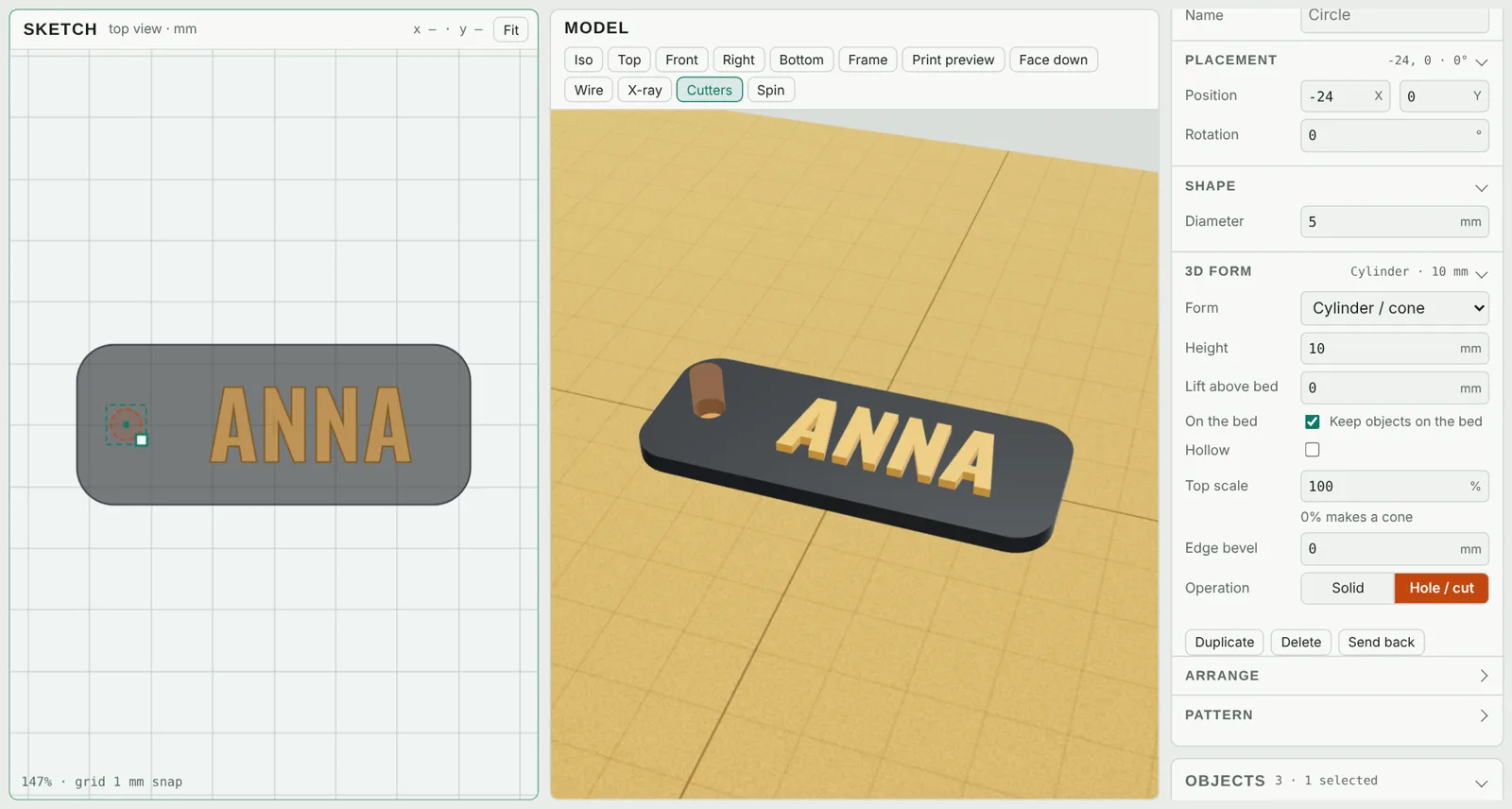
- Add a shape where you want the hole, for example Cylinder hole from the shape library, or any shape you draw.
- In the panel, set Operation to Hole / cut. It turns orange and dashed in the sketch.
- Make it at least as tall as the part it cuts. To cut only partway, use Lift above bed and Height to set where the pocket starts and ends.
In 3D, holes show as orange see-through cutters; switch them off with Cutters (H) to see the finished part.
Good sizes
- Key ring: 4–5 mm hole with at least 2.5 mm of material around it.
- Screws: add 0.2–0.4 mm to the screw diameter so it fits after printing.
Cookie cutters
Draw or trace the outline, set Form to Outline wall, a wall of about 0.8–1.2 mm, a height of about 15 mm and a Floor of 0 for an open cutter. See the cookie cutter guide.
Flush inlays Pass · Maker · Seller
For two-color signs that are perfectly flat on top, put the details on top of the plate, then switch to Face down and click Make raised parts flush (inlay) in the Project panel (it appears when raised parts would print over air). Each detail is sunk into the part below with a matching pocket, ready for a second color. More in face-down printing.