Home / Guide / Selecting and editing
Guide 4 of 11Selecting and editing
Click a shape to select it. Its settings appear in the panel, and a dashed box with a square handle appears in the sketch.
Move, resize and rotate
- Move: drag the shape, or use the arrow keys (1 mm; Shift for 10 mm, Alt for 0.1 mm). Type exact numbers in Position.
- Resize: drag the square corner handle, or type the size in the panel.
- Rotate: [ and ] turn by 15° (hold Shift for 1°), or type the angle in Rotation. On a touchscreen, drag the round knob above the shape.
- In 3D: drag a part to slide it on the bed; Shift+drag raises or lowers it.
The right-click menu
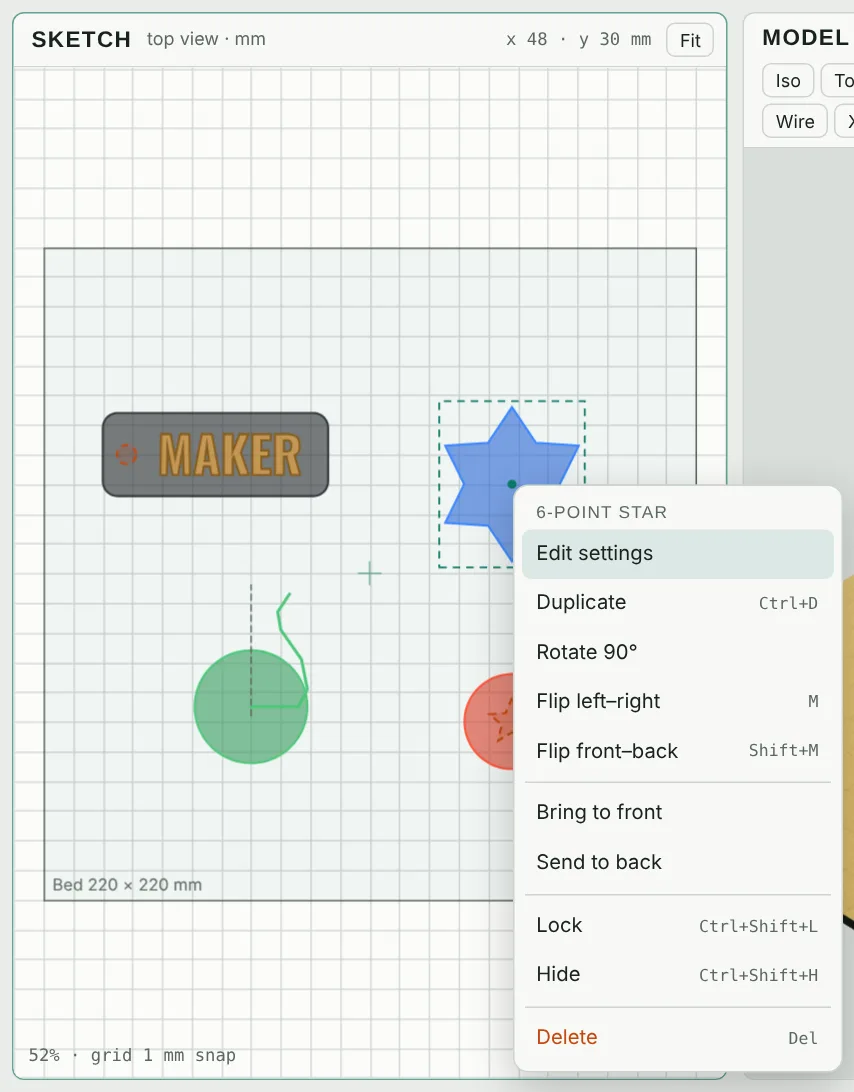
Right-click a shape, in the sketch or the 3D view, for Edit settings, Duplicate, Rotate 90°, Flip, Bring to front, Send to back, Lock, Hide and Delete. Right-click empty space for Select all, Fit to view, Import image and Clear. A right-drag still pans the view.
Several shapes at once
Shift+click to add shapes, or drag a box around them on empty space. Ctrl+A selects everything. On a phone, press and hold a shape, or tap Several, then tap the others.
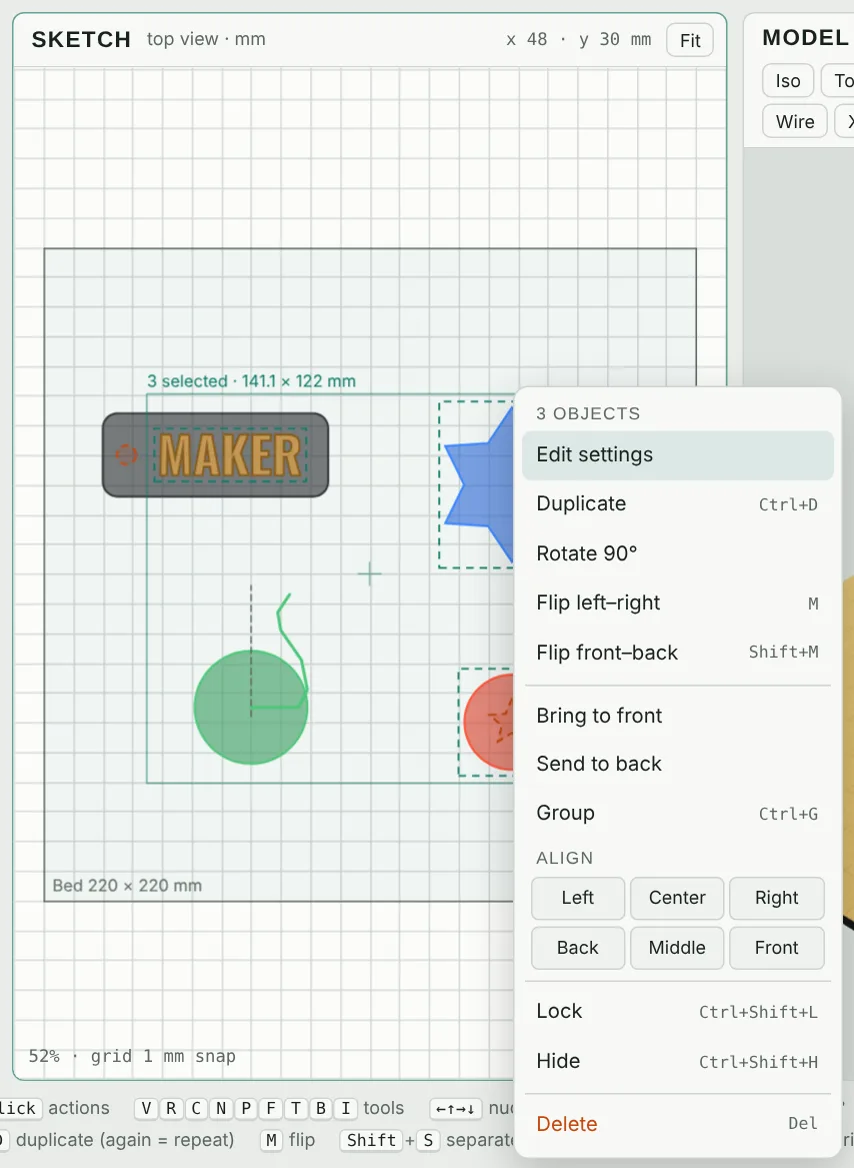
- Align left, center, right, back, middle or front, and Center on bed or Drop to bed (in the panel under Align & arrange).
- Group (Ctrl+G) so they select and move together; Ungroup with Ctrl+Shift+G.
- Scale them together by dragging the corner handle of the selection (Alt scales from the center).
Duplicate and patterns
Ctrl+D makes a copy 10 mm away. Move or rotate the copy, press Ctrl+D again and the same step repeats, which is a quick way to make rows, stairs and circles of parts. For exact layouts, open Pattern in the panel: In a row with spacing, or Around a point with a sweep angle and copies that face the center.
On a phone
Tap a shape and a toolbar appears above it: Delete, Copy, Rotate (90°), Flip, Front, Back, Several and Edit (opens its settings). Drag the round knob to turn it freely; it settles on 15° steps. Pinch to zoom, drag empty space to move the view.
Lock, hide, undo
- Lock (Ctrl+Shift+L) stops a shape from moving by accident. Hide (Ctrl+Shift+H) takes it out of the model until you show it again.
- Undo Ctrl+Z and Redo Ctrl+Y go back up to 80 steps. Deleting or clearing shows an Undo button in the message too.