Drawing shapes
Every part starts as a flat shape in the sketch. Pick a tool, draw, and the shape becomes a 3D part. You can change any shape afterwards in the settings panel.
Box, circle and polygon
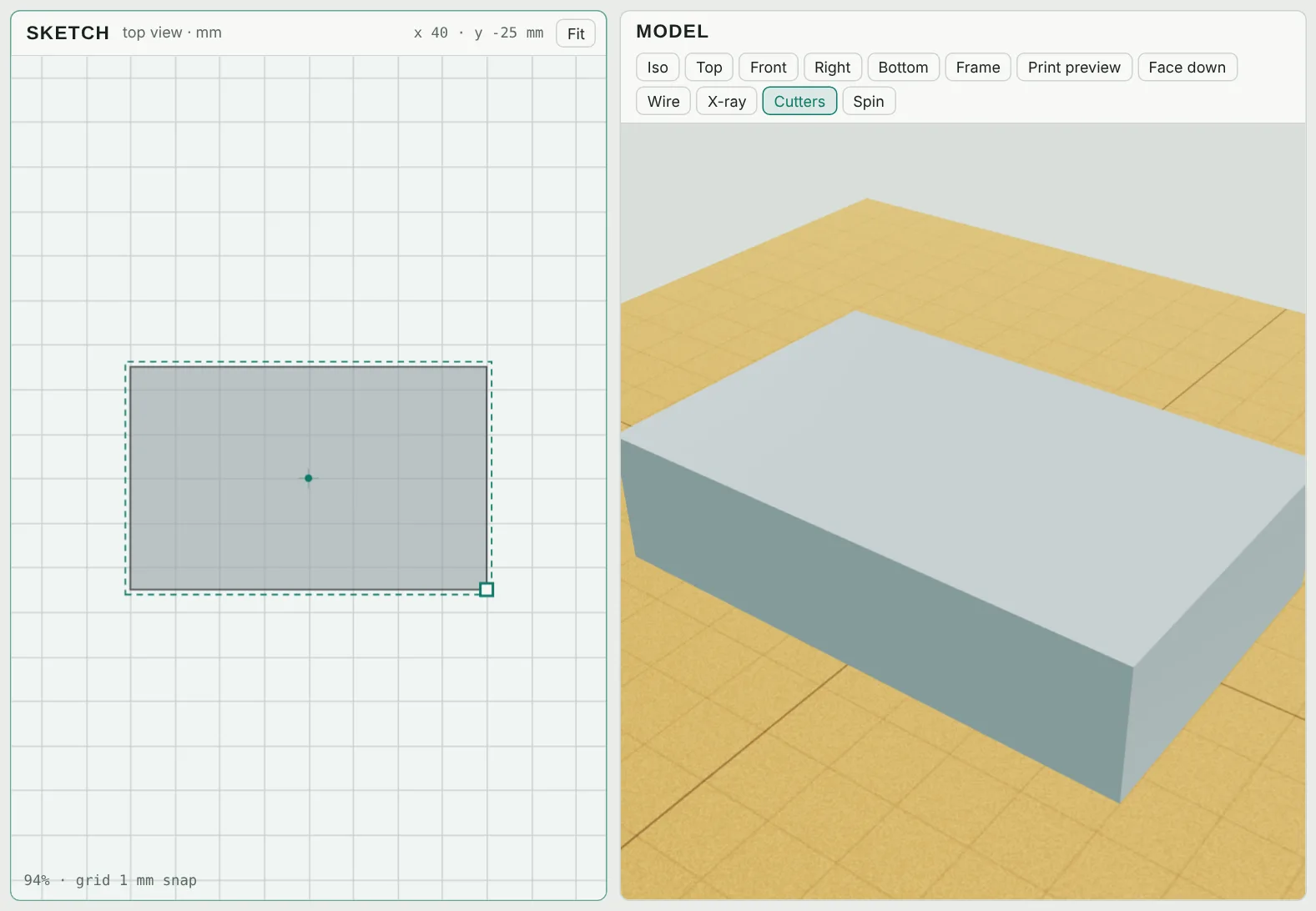
Pick Box (R), Circle (C) or Polygon (N), then drag on the sketch to set the size, or just click for a standard size. The tool switches back to Select when you are done.
- Box: width, depth and Corner radius for rounded corners.
- Circle: diameter. Its Form can also be a cone, sphere, half sphere, paraboloid, tube or ring.
- Polygon / star: diameter, number of points / sides, and Star depth (100% is a plain polygon; lower makes a star).
Pen and freehand
- Pen (P): click to place points. Click the first point (or press Enter) to close the shape; double-click to finish an open line. On a phone, use the Finish line and Close shape buttons.
- Freehand (F): drag to draw. End near where you started to make a closed shape; the line is smoothed automatically.
Closed shapes become solids. Open lines become a wall that follows the line (great for borders and lettering strokes), or can be spun into a vase with Revolve (see 3D forms).
Text
Pick Text (T), click where it should go and type in the panel. Choose a font and Letter size. Bold fonts such as Oswald Bold and Roboto Black print best when small. The + next to the font list loads your own .ttf, .otf or .woff font.
To space or recolor letters individually, use Separate into letters in the panel (Shift+S).
The shape library
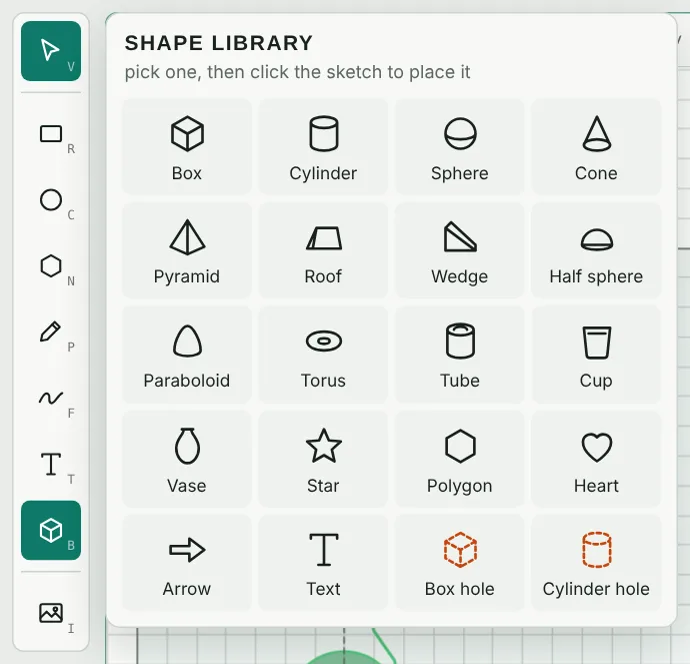
Click the cube icon (B) for ready-made shapes: box, cylinder, sphere, cone, pyramid, roof, wedge, half sphere, paraboloid, torus, tube, cup, vase, star, polygon, heart, arrow and text, plus box and cylinder holes. Pick one, then click the sketch to place it.